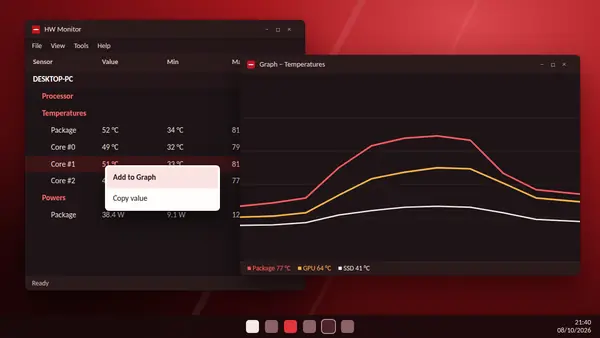
Version 1.64 of HW Monitor added real-time graphs. Any sensor in the tree can be drawn as a moving curve, so you can see a temperature rise as it happens.
Add a sensor to a graph
- Select a sensor in the main window, for example the processor package temperature.
- Right-click it.
- Choose Add to Graph.
The graph window opens automatically and starts drawing.
How sensors are grouped
By default, sensors of the same type share a graph. Temperatures go together, clock speeds go together and power readings go together. That keeps the scale sensible. A graph can hold up to eight curves.
Graph settings
Right-click the graph window and choose Settings, or press the S key. For each curve you can:
- move it to another graph or to a new one,
- change its colour,
- delete it.
Big font for small screens
The Set Big Font option enlarges the text in the graph window. It is meant for small secondary displays, such as the narrow sensor screens some people mount inside or beside their case.
Transparent window
Since version 1.66 the graph window can be transparent, so you can keep it on top of other things without hiding them completely.
Useful combinations
- Processor temperature and fan speed: shows whether the fan reacts when heat rises. They are different sensor types, so they appear on separate graphs.
- Processor and graphics card temperature: shows which part heats up first in a game.
- Package power: shows how hard the processor is being pushed from moment to moment.
- Core clocks: shows the moment speed drops when the chip is too warm.
Graph or log?
- Use a graph to watch live while you change something, such as a fan setting.
- Use the CSV log, started with F5, when you want to keep the data and study it later.
Tips
- Do not crowd one graph. Three or four curves are easier to read than eight.
- Give similar sensors clearly different colours.
- Place the graph on a second monitor while you play or work on the first.
If you do not see the option
Graphs need version 1.64 or later. Download the current release from the download section and install it over your old copy.