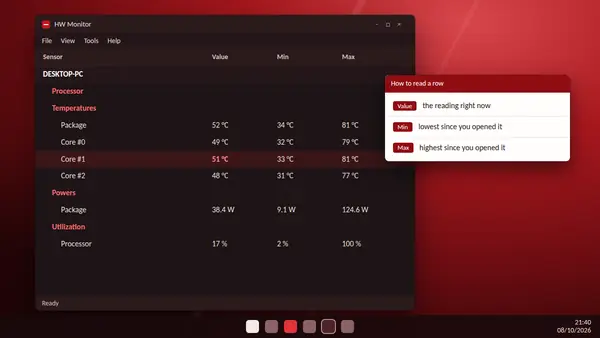
HW Monitor looks plain when you first open it: a long tree of sensors in a small window. A few adjustments make it far more pleasant to use, especially if you keep it open while you work or play.
Change the theme
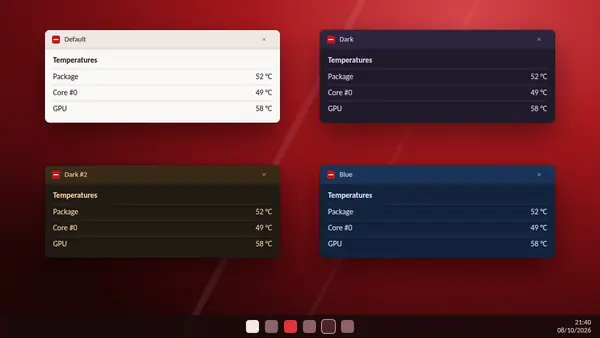
Open the View menu and choose Theme. Four themes are available:
- Default: the classic light Windows look.
- Dark: a dark theme with purple tones.
- Dark #2: a dark theme with orange tones.
- Blue: a blue theme.
The dark themes are easier on the eyes at night and suit a monitor that sits beside a game.
Collapse what you do not need
Every device and sensor group in the tree can be collapsed. If you only care about processor and graphics card temperatures, close the mainboard voltages, the drives and the battery. From version 1.68, HW Monitor remembers which sections you left open and closed, so the layout is the same next time.
Window position
The program also remembers where you placed its window. Put it on a second monitor once and it will reopen there.
Reset Min and Max
Min and Max cover the whole time HW Monitor has been open. Before a test, clear them from the View menu so that the figures describe that test only.
Keyboard shortcuts worth knowing
- F5: start or stop CSV logging.
- S: open the settings of a graph window.
Keep an eye on one reading
Right-click the sensor you care about and add it to a real-time graph. The graph window is smaller than the main window, can use a bigger font and can be made transparent.
Arrange your screen
- One monitor: resize HW Monitor into a narrow column at the edge of the screen and collapse everything except the essentials.
- Two monitors: keep the full tree on the second screen.
- Small sensor display: use a graph window with the big font option.
Share your readings
When you ask for help on a forum, a screenshot of the relevant sections is usually enough. For a complete picture, save the monitoring data as a text file from the File menu and attach it.
What you cannot change
The free version does not place readings in the system tray. That feature belongs to HW Monitor PRO. The interface language is English.