HW Monitor is small and quick to set up. The publisher, CPUID, offers it in two forms, and the only real decision is which one suits you. This guide covers both, plus the safety check the publisher recommends.
Setup or ZIP?
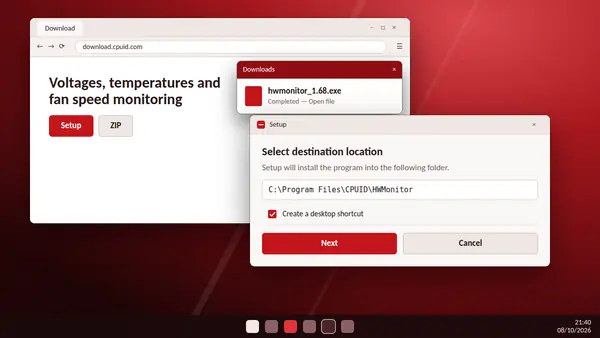
- Setup (.exe): installs the program, picks the 32-bit or 64-bit version for your Windows automatically and adds entries to the Start menu and desktop. Choose this for a PC you use every day.
- ZIP: a portable copy with no installation. Unzip it anywhere, including a USB stick, and run it. Choose this for a quick check or for a toolkit you carry between computers.
Download the file
Use the download buttons on our homepage. They link directly to the CPUID download server.
Check the file before opening it
CPUID advises checking the SHA256 checksum of the download before you open it.
- Open the Start menu, type
cmdand open Command Prompt. - Type
certutil -hashfile, then the full path of the file, thenSHA256, and press Enter. - Compare the long code that appears with the entry for the same file in the checksum list on the CPUID website.
If the two codes are not exactly the same, do not open the file. Delete it and download it again.
Install with the setup file
- Open the downloaded
.exefile. - Choose Yes when Windows asks for permission.
- Follow the installer. You can keep the suggested folder.
- Start HW Monitor from the Start menu or the desktop shortcut.
Run the portable ZIP
- Right-click the ZIP file and choose Extract All.
- Open the folder and run the
x64version. - If it does not start, your Windows is 32-bit. Run the
x32version.
Your first look
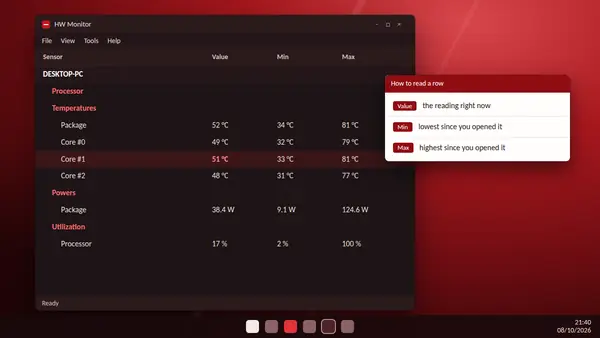
HW Monitor opens with a tree of your hardware: mainboard, processor, graphics card, drives and, on a laptop, the battery. Each sensor shows three figures: the value now, the lowest value and the highest value since you opened the program.
Updating
New versions mainly add support for new processors and graphics cards. If a recently released part is missing or shows odd readings, download the latest version and install it over the old one.
Uninstalling
Remove the installed version from Windows Settings under Apps, or choose Uninstall HWMonitor from the CPUID folder in the Start menu. A small CPUID folder stays behind because it holds the settings file. You can delete it by hand. The portable version is removed by deleting its folder.