Checking processor temperature is the most common reason people open HW Monitor. The program shows it within seconds, but the list of sensors is long. This guide tells you which lines matter.
Find the processor section
- Open HW Monitor.
- Look for the entry named after your processor, for example an Intel Core or AMD Ryzen model.
- Under it, find the group called Temperatures.
Package and cores
- Package: the temperature of the processor as a whole. This is the best single figure to watch.
- Core #0, Core #1 and so on: a reading for each core. Cores doing more work run warmer, so small differences between them are normal.
Recent versions also show a maximum line for core temperatures, which reports the hottest core at a glance.
Value, Min and Max
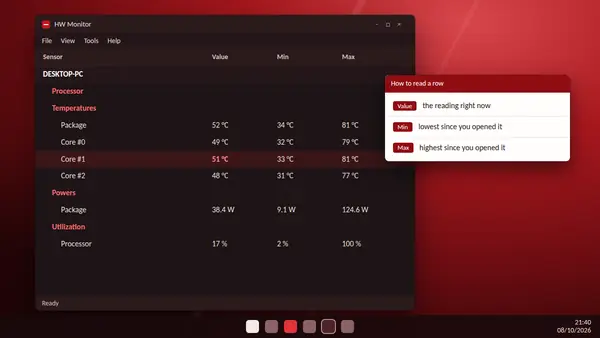
- Value is the temperature right now. It changes every moment.
- Min is the lowest reading since you opened HW Monitor.
- Max is the highest reading since you opened it.
The Max column is the useful one. You do not have to stare at the screen while the PC works. Leave HW Monitor open, use the computer, then read Max afterwards.
Test under load
- Open HW Monitor and note the Value while the PC is idle.
- Leave it running and do something demanding for 15 to 20 minutes: a game, a video export or a benchmark.
- Return to HW Monitor and read the Max column for the package.
To start a fresh test, clear the Min and Max figures from the View menu, or close and reopen the program.
What the numbers mean
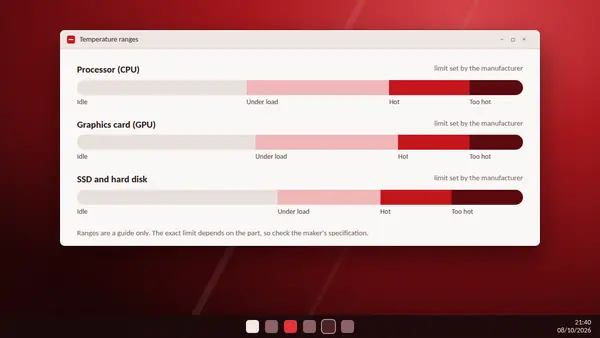
At idle, most desktop processors sit somewhere between 30 and 50 °C. Under heavy load, 70 to 85 °C is common. Modern chips are designed to run warm, and many only slow themselves down at around 95 to 105 °C. The exact limit depends on the model, so check the maker's specification for yours.
Signs of a problem
- High temperature at idle, with nothing running.
- Max readings at or near the processor's limit during ordinary tasks.
- Temperature that climbs quickly and the PC then slows down or shuts off.
The usual causes are dust in the cooler, a fan that has stopped, dried-out thermal paste or poor airflow in the case. A laptop on a bed or sofa will also run hot because its vents are blocked.
Keep a record
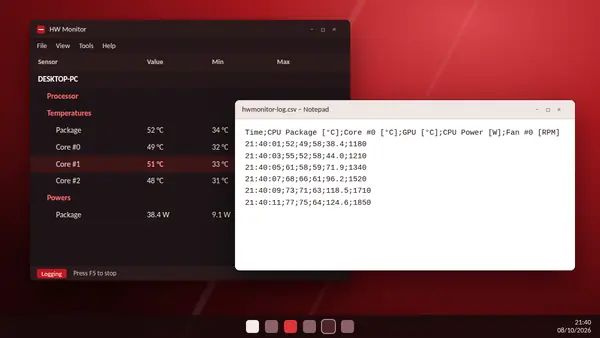
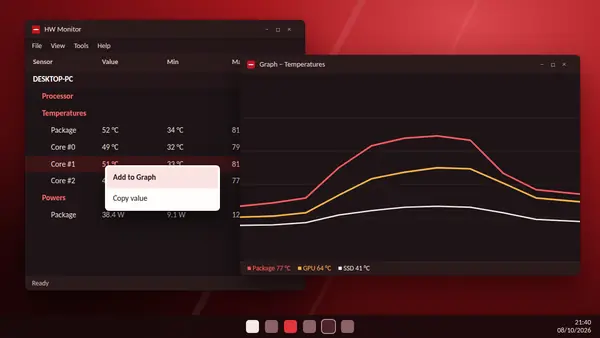
For a long session, press F5 to log readings to a CSV file, or add the package temperature to a real-time graph so that you can watch the curve.